Showing posts with label Android. Show all posts

Top 5 Server and Admin Applications for Android and iPhone in 2020


Top 5 Server and Admin Applications for Android and iPhone in 2020


No matter what is the nature of your work, whether you are a webmaster, server administrator or an IT professional, the ability is to deal with your admin tasks and the server is your utmost priority. In this article, we are going to discuss the top five server and admin applications that is suitable to your iPhone, and Android mobile gadgets.

1. AndFTP

For those who are not yet familiar about AndFTP it serves as an SCP, FTP, and SFTP and FTPS client. Moreover, AndFTP let the user to handle number of FTP configurations; as well it provides features like download and upload and sharing management. As well AndFTP allows the user to delete, rename, open, or update permissions, and also to run custom commands.

2. ConnectBot

ConnectBot act as a Secure Shell client intended for Android users, as well it creates secure connection through using a shell even the gadget is in the remote distance to transmit files and data back and forth to your phone. Furthermore, ConnectBot let the user to handle numbers of SSH sessions, as well allow them to copy and paste between other applications, and to build protected tunnels.

Jack Wallen an award winning writer of Linux.com stated that ConnectBot is a must have app, in fact he recommend this app to the Linux admin who are using Android phone.

3. ServerMonitor

ServerMonitor is an app intended for iPhone users, it uses SSH protocol to link machines remotely to assists with your workstation and server monitoring requirements. The multi-protocol supports include the following: FTP, SMTP, HTTP, IMAP, MySQL, HTTPS, DNS, POP3, Ping and SSH.
Although there is no much review regarding this app but the general response seems to be optimistic. Based on the feedback from the users one thing they want to be added in this app on the next update is the ability to view all list of running processes and to view how much memory they occupy.

4. iSSH – SSH / VNC Console

The iSSH – SSH / VNC Console for iPhone is an SSH and Telnet emulator that is fully featured with ANSI, VT102, VT100, and VT220 incorporated with tunneled X server, RDP client and VNC client. As well this app has the ability to carry simultaneous connections with total terminal compatibility, intuitive user interface, and configurable macro and key options.

5. Network Utility

Network Utility let the user to check the status of their server or websites through their Apple device or iPhone anywhere. Network Utility is fully featured with TCP/IP Port Scan, ping (ICMP Echo), IP address information, Whois Query, GeoIP Lookup, and more.

For me this another iPhone app that seems to be gathering mixed reviews. Some user approved its efficiency and its user friendliness, but other user rising complaint that this app causes their device to freeze up that can only be fixed through restarting the device. Users as well object about the absence of subnet scans. The decision is still out on this app. But the best thing we need to do is to try this and experience how it holds up.


About the Author:
Stacy Carter is a tech writer and freelance blogger laying out for tech news via online exposures. She is the author of the site: iPhone Spy where you can get valuable information about spy software program on your cell phone.

How to Root Your Android Device Easily

Some say that has Android gadgets but have not rooted it is not perfect. Actually what is the meaning of the root itself? For you are a gadget freak or have been addicted brain-tweaking mobile devices must have been very familiar with the word root or Android rooting activity. But not a few who still do not understand what it means rooting. Well this time we will talk about the root functions of Android and Android root ways that will increase knowledge about modifying the activity of the Android gadgets.

Before addressing the root functions of Android and Android root way, we want ado about what the root. Root itself is basically is to modify an Android-based device, enabling users to more freely to access all the files, commands, and system. Gadget users usually do the rooting in order to optimize the system on his Android device. The process of rooting itself allows users of Android gadgets to clicking explore all existing systems in the gadget, similar to the open source Linux-based devices. But that does not mean the rooting process is always a happy ending. Many users who actually make the gadget into error because a misstep while doing rooting. So, to be more clear about the rooting process, it helps you listen tips root functions of Android and Android root of our way.

Easy Root Android


Android Root Function
Although the risk can not be avoided, it does not mean fans of gadgets left rooting activity. If you run through the steps right, then the root function of Android will run up and can make the device you become more optimal. The main function of root you need to know is, with the root Android users can add, subtract, or modify files or data are located within the Android-based devices. For Android-based smartphone itself, some of the files or the system it is locked, or can not be opened because users do not have access permissions on those files. Well, Android root function is to unlock the file so you can become an administrator to then freely can customize as to maximize the performance of Android, overcloock clicking the following processors, as well as remove the default Android application unnecessary. In addition, the rooting process can also be used to install a custom ROM from a third party and also can be used for backing up applications and systems that exist in Android. Android root function also allows you to run applications even though it does not support the specification of the application running on Android handsets. However, because it is illegal rooting you will be faced with several risks. One risk that you will encounter while performing the function of root Android is the loss of the warranty of your phone vendor. Moreover, if the function and how to root Android does not run through the proper measures and safety could result in damage to your phone software. Worse yet, if rooting is done in the wrong way then you could die gadget total due to a system error. For that, you bring Android root function and how easy and safe through the steps that you can use.

How to Root Android
After skimming about the functions and how to root the Android above, now we will give you the steps easy, and certainly safer. Broadly speaking, there are two ways Android root step. The first step that can be taken using computer-assisted PC. Whereas the second way, you can directly carry out the process of rooting the device without the need to use the help of a PC. But we need to remind that the rooting process is always risky. If you are not convinced to do so, you can try on a device that has a specification that is not too high. And most importantly, do not let one step when rooting because it can be fatal to your Android device. Here are tips on how to root Android:

1. How to Root Android via PC
How to root Android to the PC is the first way that we can to root our favorite Android phone. The first step of rooting using this PC, you should use the rooting app for Android. One way to root Android phone with PC are quite popular is using KingoRoot application. KingoRoot a root application that can be downloaded for free in the pages or sites Android application provider. After downloading the application KingoRoot, make sure the battery in a smartphone in a state of full or fully charged. This is to avoid the phone off when the rooting process is running. If the root stopping halfway, could result in failure of the system and lead software and system broken. Additionally, pastikankamu connect the smartphone and PC using a compatible USB cable. When all is ready, open the application and then review KingoRoot menu button 'Root'. You simply press the button Root then the rooting process will start automatically. You need to know, Android is the root process will take a few minutes. So, wait until the process is running perfectly until completion. In addition to the Root button, the application also has a function KingoRoot 'Unroot' which will restore the device to its original state, as before in the root. How to root Android to the PC is very easy does not it?

2. How to Root Without a PC
How to root Android without a PC seem more fun because you can make the process of rooting directly on the Android device, without using a PC. How to root Android without this PC is the most frequently performed because this time the gadget enthusiast began to leave the rooting process with the help of a PC. In addition to more practical, the process of rooting without a PC can also run faster. Just like root Android using a PC, it also requires the application. One application of rooting is quite popular is Framaroot and also Towelroot. How to root Android phone without a PC with the help of these applications is easy. You just download it and run it on your device.

Well that was a bit of an explanation of the root functions of Android and Android root way through the steps easily. With a rooted, an Android device it becomes more exciting to be operated. Even if you already know the root functions of Android and how to root Android phone, but keep in mind, that the rooting process is still at risk, even though it means taking the best and safest. So, you have to be careful when trying to root an Android device you have. If still in doubt, you can try to root with the help of a PC because if it fails, you can select the option to restore the operational Unroot your smartphone to the initial setting. So first tips root function and how to root Android Android through practical measures. Make sure you continue with us because we still have a lot of tips and tutorials that are very interesting.

Android Tips and Tricks - How to connect the Samsung Galaxy Note to PC or Laptop

It's so easy to connect your Samsung Galaxy Note to your PC using a USB cable if you want to browse your data files that has been stored on your phone's microSD card, synchronize your contacts or accounts using Samsung Kies, transferring files such as photos, videos, ringtones etc. To do this you may need to have a kies installed on your PC so that the desired USB driver for your Galaxy Note will be installed as well. You can download Kies program from samsung website. http://samsung.com/kies

Here's how to connect the Galaxy Note to PC and access the memory card. (a removable disk file directory will appear on your PC, separate from internal memory of your phone.

- From idle mode, select Application list.
- Then tap on Settings
- Tap Wireless and Network
- Select USB Utilities
- then select Connect Mass Storage to PC.
Then connect your Galaxy Note to PC with the USB cable or multifunction jack
When connected Touch USB connected or Turn on USB storage

- A USB icon will appear in the top left Notifications area of the screen.

- On the PC, go to My Computer then locate the newly file drive directory that appears as your Galaxy Note mass storage. You can now have the access to browse, sync, copy or transfer files that you want from your Galaxy Note microSD card to your PC or laptop.

Do share and comment below if you have any kind of problem.

Android Tips and Tricks - How to Boot Samsung Galaxy Note into Recovery Mode when Firmware Upgrade Encountered an Issue

Pressing the Volume UP+Home+Power buttons will boot your Samsung Galaxy Note into Recovery Mode. This is useful if you encountered an issue while upgrading your device firmware and something happens that it just suddenly stuck on a screen and it only displays "Firmware upgrade encountered an issue. Please select recovery mode in Kies and try again." Then the PC will not recognize your Galaxy Note even if you already connected it.

Here's what you have to do next if it happens that you might also encountered this kind of situation.
1. Remove the battery of your Galaxy Note (If you can't turn it OFF while stuck on the error screen)

2. Put the battery again but don't power it yet again. This time press the recovery mode button combination.
Press and hold the Volume UP+Home+Power buttons until a recovery mode screen appears.

3. Use Volume Up and Down keys to toggle these options.
reboot system now
apply sdcard:update zip
wipe data/factory reset
wipe cache partition

4. Select the the first option "reboot system now" then wait until the device will reboot normally.
If the device will not boot into a welcome screen and just stuck or freeze,  go back to recovey mode again.

5. This time select the "wipe data/factory reset" (Note: this will delete all the stored data of  your device but not from the SDcard. Then again "reboot system now". This should boot your Galaxy Note into normal mode.

Why this happens?
This might happens in several reasons while you are  upgrading  into a certain firmware update.
1. One of these is that you accidentally interrupt while the phone is in firmware upgrading process.

2. Due of power lose, your device have no sufficient battery charge when you upgrade.

3. Network connection is too weak and or an interruption occurred.

4. If you are using a PC or laptop, it might getting interrupted with another program like anti-virus software.
The rest will be on your own personal experience.

Then try to update the firmware again, 'this time ensure that you have your android device battery fully charge, use a good PC or laptop and a good network connection.

If the above method doesn't works on your Galaxy Note anymore, then I suggest that you should visit your dealer. Explain to them of what really happens when you update your device and ended-up in an undesirable outcomes. Of-course let them fix for it.

       If you have any kind of question comment below.

                   !!Sharing is Caring!!

Android Tips and Tricks - How to take Screenshots on Samsung Galaxy Note Upgraded with ICS Android Ice Cream Sandwich

This is now exactly how it works to take a screenshot on Samsung Galaxy Note that already upgraded and running with Android Ice Cream Sandwich ICS 4.0.3 OS. Once you already updated your Galaxy Note to ICS, the screen capture hotkey combination is now change to Volume Down and Power buttons (originally [Home] + [power] when it was in 2.3.6). This function was the same on Samsung Galaxy S2 that also updated with ICS 4 OS and probably will work on other Samsung android devices that already runs with said Ice Cream Sandwich OS.

           You'll just then simply press and hold the Volume Down and Power buttons at the same time for about a second. You’ll see a flash and the screen will be framed which shows the screenshot was taken. A new notification in the notification bar saying "Saving Screenshot" and once it’s done there’ll be a "Screenshot captured"” notification in the pull down menu which will take you directly the screenshot in the Gallery.

The screenshot will be saved on your phones internal SD card - in a folder /Pictures/Screenshots. That's it, enjoy!!!

        And don't Forget to Share.

Android Tips and Tricks - How to Factory Reset Samsung Galaxy Note 2

Does your Samsung galaxy Note 2 runs Slowly? Is there certain lag? Do You wanna make your Android Performing Fast? If your answer is Yes this one is for you.factory reset on your Samsung galaxy Note 2  will ease you from severe lag, hang, frozen issues. If you want to make your device in a re-fresh condition then factory reset may solve it all. This may also useful if you need to wipe all data and restore the device to its original default settings. One downside of doing factory reset is that you need to make a back-up copy of all important files you have saved on it, for it will all be deleted once the process done.
          If your Galaxy Note is rooted, then its been easy for you to make a back-up all of it via CWM recovery. For unrooted devices you can use any back-up apps like Samsung Kies that sync all your data and saved it to the computer.

Factory Reset via Settings
          From Home screen tap on "Settings" Tap on "Select Back up and Reset" Choose "Factory Data Reset" Reset all settings and delete all data on device. Enter "Reset Device". Then, select "Erase Everything".

Factory Wipe Data/Factory Reset via Recovery Mode
          Turn the Power off. Gently press and hold down Volume Up + Home + Power buttons simultaneously. Release all keys once the Logo appears. You will then prompted in a Android System Recovery options. Now, scroll down using Volume keys, and choose "Select Wipe Data/Factory Reset" Enter your selection using the "Power" button Select Yes — "Delete All User Data". Then, select "Reboot System Now".

Wait until the device will then completely reboots. You can repeat this process if you need to restore back your Samsung Galaxy Note 2 to its original default settings.

This was the article showing you How to Factory Reset Samsung Galaxy Note 2.If you like this post please Share it Because Sharing is Caring.If you have any question comment  below.

Android Tips and Tricks - How to Stop Auto Update Apps From Google Play Store

This is the common problem of every android user alot of your balance goes during auto update by Mobile Network.If you belong to this then this tutorial is for you.After reading this tutorial you will be able to stop Auto update apps from Google playstore.You will be able to update you app yourself .

Here are the steps:

Open Play Store and head over to Settings.

Tap on Auto-update apps.

Choose Do not auto-update apps.

If you want to enable the auto updates, follow the same path and choose Auto-update apps at any time or via Wi-Fi (available for certain Android devices only).

To update your apps manually, just open Play Store, and on the main page swipe in from the left and tap on My apps.

You can tap on apps with pending updates and update them manually, or if you like to update them all at once, just tap on Update All.

      CLICK HERE to Get Video Access.

Android Tips and Tricks - How to Use Multiple Google Account In Android Phone

As all of us know that to use an Android phone Google account is essential without google account using your Android is almost impossible. So what if you have multiple google accounts And you really want to use both of them and wanna access from your phone.You don't need to worry because it is possibe to use multiple google account.The question is How and the Answer is follow the Following steps.

To add multiple Google accounts:

Go to Settings > Add account.

Select Google and setup your New or Existing Google account.

Once added, choose what you want to sync with the account.

Repeat all the steps above if you want to add more accounts.

And that's it now you will  be able to use multiple Google account in your Android Phone. If you like this post please do Share because Sharing is Caring.
     For more Tips and Tricks Subscribe to my Youtube Channel. CLICK HERE to Subscribe

Android Tips and Tricks - 15 Best Android Apps That You May Have Never Used

As soon as you get your brand-new Android smartphone, there are a few apps you are probably going to download immediately, Facebook, Twitter, Spotify, maybe Kindle, along with your favorite games. But with more than a million apps in the Google Play store, it’s pretty much assured that there are going to be a lot of options that you never even thought of, either because you’re not sure what they do or you simply don’t even know they exist. Here’s a list of some top picks that you probably don’t about that you might want to try:

Wikitude
Wikitude is a free browser that will open up your eyes to the world around you using your device's camera. This augmented reality browser is neat because it lets you explore and interact with your surroundings. You can search for places around you, like "restaurants" or "accommodations," or look up nearby events, tweets, Yelp recommendations or even a relevant Wikipedia article or two. Vendors in the area also serve up mobile coupons through the app so you'll know when you're located near a good deal. Wikitude also comes with a bunch of cool AR games, like “Alien Attack”, "Swat The Fly," and "Bubble Tap."

Tasker
Whether you're interested in keeping your phone screen on while you read an e-book or you want it to ring a bit louder, Tasker is ready to do your bidding. Take advantage of this clever app's numerous triggers, such as time, day and location, to save yourself some time and make your smartphone even smarter.

Buzz Launcher
Tired of the way your phone's interface looks? Wish you could change more than just the wallpaper? From app drawers and calendar widgets all the way to home-screen layouts, Buzz Launcher lets you change the look of your interface so it feels like you're using a completely different device. You can choose from one of more than 200,000 beautiful user-created designs, or just create your own. You can even build your own widget and personalize your phone even more than you thought possible.

A.I.type
It would be nice if your keyboard were smart enough to know what you want to enter, but not so darn presumptuous that it auto-corrects your words all the time without even providing any notice. A.I.type features a context-based next-word prediction engine that warns you before (and after) it corrects your text. With different skins, such as iPhone 4s and Windows 7 layouts, you can emulate other devices and operating systems. A.I.type also offers you navigation and editing buttons, like Back and Undo, so your fingers will never have to leave the keyboard again. It also learns from your typing habits, refining its prediction engine as you type.

CamDictionary
Whether you're getting ready for a trip to Japan or just want to understand the menu at a fancy French restaurant, CamDictionary can be a lifesaver. This app translates the words it sees through your device's camera, in real time, so you don't have to worry about taking a picture just to get your explanation. Thirty-six languages are supported, and you can use CamDictionary almost anywhere in the world. You can even learn a new language, thanks to the pronunciation guides and audio clips that play through your native speakers.

Google Goggles
Google Goggles is a cool program that lets you look up anything you see around you by just snapping a photo with your phone's camera. Shoot pictures of bar codes, QR codes or any image such as a famous landmark, billboard or movie poster. The app will do a Google Images search, and then return information such as movie titles, locations and even translations of foreign text in your pictures. You can also use this app to add additional contacts by taking a snapshot of a business card, thanks to built-in Optical Character Recognition (OCR).

WeChat
Messaging apps that send texts, photos, videos and location information are everywhere these days, but WeChat's claim to fame is fun. A cool live chat walkie-talkie-style feature will allow you and a group of friends to send short voice message.

If you know more such apps please mention below and CLICK HERE  to Subscribe to my channel.

Android Tips And Tricks - Increase Battery Life on Android Phones

Anyone who has a smartphone knows that battery life is an issue. At the moment, the smartphone industry tends to favor performance over battery life when developing specifications for their new devices. To be perfectly honest, I am all for this. I would argue that it's better to have a zippy phone that acts quickly when I need it to rather than a slow, less sleek device that can withstand a few days of use without charging.

This is probably because I've mastered getting what I need from my phone while using the smallest amount of battery resources possible. Getting the best battery life from your phone can be somewhat complicated because everyone has a different opinion on what you should use and which (if any) features you should sacrifice to conserve battery. Fortunately, I have a simple method that works for every Android phone I've ever encountered.


Display Screen

As a universal fact across all phones, the biggest drain on your battery is your display screen. Personally, I've found the auto-brightness control to work extremely well. To adjust to auto-brightness, go to
SettingsàDisplay settingsàBrightness, and then just check Automatic brightness. It dims the brightness when you're in darker rooms (as it doesn't need to compete against other light sources and glare), but will really up the brightness if you're outside so that your phone is actually usable. However, if I'm really trying to conserve battery, I will turn off auto-brightness and set the brightness to very low (around 25%).

Also, be sure that you don't have an extremely long timeout (inactivity time before your screen automatically shuts off) as this will drain your battery. I personally just prefer shutting the screen off manually by pressing the power button rather than waiting for a timeout; this way my phone won't timeout on me when I am just reading something on it.

Live Wallpapers
Live wallpapers have a considerable impact on your battery life. Not using them is always a good idea if you want the best time from your battery.

Close Unnecessary Applications
If your phone has some applications running that you are not currently using, you should close them from the Task manager to avoid putting unwanted pressure on your phone which in turn will cause your battery to drain quickly.

Reduce Volume of speakers
Lowering volume of your phone's speakers can also have noticeable improvements in your phone's battery life.

The Power Control Widget

If you have a fairly recent phone (anything running Android 2.1 or higher), you are already blessed with a completely awesome "Power control" widget. If your phone does not have this widget, you could always download one from the Play store. This is a must for your home-screen. With this widget, you can enable and disable WiFi, Bluetooth, GPS, and Auto-sync in addition to adjusting brightness levels between auto, low, medium, and high.

The only thing this widget left me wanting was the ability to enable and disable mobile wireless networks(3G and/or 4G network). Some phones allow you to do this by pulling down the "status bar" at the top of your phone (where notifications, battery life, and signal are) and selecting or unselecting "Mobile data." Other phones allow you to control mobile wireless networks by holding down the power button. Worst case scenario, you can adjust it in "Settings."

Now, when to enable and disable these features, all boils down to preference. I only use Bluetooth, WiFi, and GPS as I need it; otherwise it's off. If you have a WiFi connection available, it's generally better for your battery to use it rather than using your mobile wireless network (especially if you get poor signal for your mobile wireless).


How To Download APK Files Directly From Google Play

Usually, people get apps for their android device by downloading them from Google Play Store. The downloader gets the app installed for you, without bothering you with unnecessary details like the files required for installation etc. But what if you don’t have access to internet and you want an app installed on your phone? Surely you can’t do so without downloading stuff required for the installation. The solution to this problem is simple - just get the APK package of the desired app, and keep it beforehand for later when you need. APK stands for Android Package. It’s actually a package which contains all the files necessary for installation. In other words, it’s a ‘standalone’ installer for your app which doesn’t require internet connectivity. You can get APK package of an android application from Google Play Store by simply adding an extension called ‘APK Downloader’ to your Google browser. Here we have a step by step procedure which will tell you how to add APK Downloader to your Google Chrome and subsequently, use it for getting APK packages Go to http://codekiem.com/2012/02/24/apk-downloader
Download the extension from the link provided above Once downloaded, the extension is to be added to your Google Chrome Extensions. To do so, follow these steps. Go to the ‘Tools’ menu of your Chrome and select ‘Extensions’. Locate the file you just downloaded (with extension ‘.crx’) Now drag the file to your Extensions page. For confirmation look for a small Play Store icon on your address bar To configure the APK Downloader extension for your android device Select the ‘options’ button on the menu Enter the Gmail ID (the one required for Play Store) Enter your password and device ID of your android device
For those of you who don’t know where to get device ID of your android device Dial “*#*#8255#*#*” from your android phone If you are using an android tablet Go to Google Play Store Download ‘Device ID’ Device ID Device ID will get your device ID for you. Getting APK of an app is simple, just locate the app you want (on Play Store) and clicking on the APK icon on your address bar will get you your precious APK for that app. Another good thing about APK package is that it makes app sharing simple, now you can share an app with your friends by simply transferring the package to their device. APK Icon The APK and APK Downloader will make your life a lot easier if you face problems in installing your favorite apps due to connectivity issues or if you like to share your favorite apps with your friends.

9 Reasons Why You Should Buy an Android Phone Instead of an Iphone

There are a wide variety of smartphones out there today, but the Android and iPhone are the two most popular operating systems for mobile devices by far, accounting for more than 90% of smartphone OS market.
While both phones offer a lot of great features, but there are plenty of reasons to get an Android phone instead of an Iphone.
In this article, I’ve listed down 9 reasons why you should buy an Android phone instead of an Iphone or other OS smartphone.
  1. More free apps and games
    This probably the best reasons why you should buy an android phone. While both Apple and Google play store has over 700,000 different applications that you can be downloaded from your device. But you get more free apps and games in the Android market than you get in the Apple App store. For example, angry bird games which are sold for $0.99 each in the apple app store, but you can get it for free in the Google play store.
  2. Easy Customization
    Android phones give you a ton of options for customization. You can change the default settings for almost anything. Moreover all mobile applications that are downloaded from Android market are compatible with Android handsets making it easy to customize.
  3. Open Source Platform
    The best thing about Android is that it’s an Open Source operating system. This gives larger support for developers on cultivating and expanding for their platform. Moreover this gives users the freedom to contribute their own ideas and even applications, without worrying about the license issues that may be jammed them in the future.
  4. Connected with Google Products
    Since Android is owned by Google, the OS connected with all the Google products, including Gmail, Google Docs, Google Maps, Google+ and etc. All the necessary data and settings of Google services, such as Google Talk, Google Picasa, Gmail, etc, will automatically be copied to your device. All of these also give users access to a variety of applications that they can use between phone and PC.
  5. The flexibility of Widgets
    Another best thing about Android is that you can easily put widgets on your homescreen which allows you to quickly access to the apps on your phone and see all of the information you want at a glance on your home screen without having to fire up an app. On iPhone, you are unable to place widgets on homescreen to place widgets, though the iPhone’s default screen is the app drawer.
  6. Many Vendors support
    Unlike other mobile OS such as IOS and symbian that is controlled by their makers – IOS by Apple and Symbian by Nokia – Android has a wide range of big manufactures support like Samsung, Sony, HTC, and LG. Even computer vendor such as Acer and Dell have roped to launch Android-based devices. The biggest advantage for users is that they have a wide selection to choose from.
  7. Custom Launchers
    If you don’t like the launcher that come with Android phone, you can easily replace it with other launchers. You can try out a wide variety of custom launcher apps
     in the play store and tweak everything from your home screen layout to your page transitions and even gestures. There’s no risk involved with launcher apps and you can really open up a world of possibilities.
  8. Custom ROMs
    You can custom the stock ROM that came with your android device if you want to. This essential to boost your phone’s performance or to gain access to some add-ons or tools. This is definitely the extreme end of Android customization but you need to exercise a little to ensure that you don’t run into trouble.

Wine Making It Possible to Run Windows Apps on Android Platform

The man behind Wine, the not-an-emulator which runs Windows applications on Linux, has been showing off an early version for those desperate to run MS Office on their Android device.

It was, according to Phoronix - who witnessed the demo - "horrendously slow", and running on a Mac which was itself running an Android emulator. Nevertheless, he added, the demonstration at the FOSDEM open source meeting in Brussels did show Windows applications running on an Android platform, which is technically impressive even if difficult to justify.

This is a step forward for Wine (originally an acronym for "Wine Is Not an Emulator") as it would extend its capability of running Windows applications on other operating systems. At the moment, it can load them on Linux, Mac OSX, & BSD. It achieves this by real-time translation of Windows API calls into POSIX calls.

Wine is funded largely by CodeWeavers, which makes money selling a supported version branded CrossOver, though Google has been known to send money Wine's way and other companies have been involved when getting their Windows applications ported to Linux.

The idea of Wine isn't to provide a Windows desktop, but to support the single killer application which is keeping someone from switching... of course, the problem is that everyone has a different reason not to switch. If Android proves popular on tablets then Windows apps could be similarly sticky, and CodeWeavers could make money selling CrossOver for Android.

But that's for the future. What we have now is a very flaky demo which proves it can be done. While CodeWeavers sponsors some staff, the majority of Wine is the usual open-source mix of hobbyists and fanatics (sign up here), so future development will depend on that community, as well as the commercial potential of running Windows apps on Android devices.

Android Botnet Infects Over 1 Million Phones in China

A piece of mobile malware believed to be hidden in around 7,000 Android applications has infected the devices of over 1 million users from China. Experts say that this may be the largest Android botnet the country has ever seen.

According to Chinese publication Xinhua, the Trojan that powers the botnet is Android.Troj.mdk, a threat first discovered back in 2011.

Once it’s installed on a device, the Trojan allows its master to take complete control of it. The malicious element can be used to harvest messages, phone numbers, contact details, geo-location data and even media files.

Bitdefender experts note that the Trojan also downloads additional applications that slow down the phone’s performance, generate aggressive adware, and drain the device’s battery.

With over 420 million mobile users, China has become an important target for malware developers.

Android Trojan Capable of Launching DDOS Attacks from your Smartphone

Security researchers from Russian firm Doctor Web have come across a new Android Trojan they call Android.DDoS.1.origin. The piece of malware can be used for various malicious tasks, including to launch distributed denial-of-service (DDOS) attacks and to send SMS messages.

For the time being, it’s uncertain how the Trojan is distributed, but experts believe the cybercriminals might be disguising it as a legitimate Android application.

Once it’s installed on a smartphone, the malware creates a fake Google Play icon on the desktop. When executed, this shortcut opens the real Google Play in order to avoid raising any suspicion.

After being executed, the Trojan connects to a remote server, sends it the victim’s phone number, and waits for further SMS commands.

The masterminds of Android.DDoS.1.origin can send various SMS commands. One of them orders the infected device to start sending out packets to a certain server, basically launching a DDOS attack against it.

While this only affects the phone’s performance, there are other activities that can be done by this threat. For instance, the cybercriminals can order the device to start sending out SMS messages to certain numbers.

These SMSs can be used to sign up the victim for premium mobile services or they can be utilized to send out spam.

Messages can also be sent to premium rate numbers, inflating the victim’s phone bill and implicitly filling the fraudsters’ pockets.

“Activities of the Trojan can lower performance of the infected handset and affect the well-being of its owner, as access to the Internet and SMS are chargeable services. Should the device send messages to premium numbers, malicious activities will cost the user even more,” experts noted.

Doctor Web has updated its products to ensure that its customers are protected against this threat.

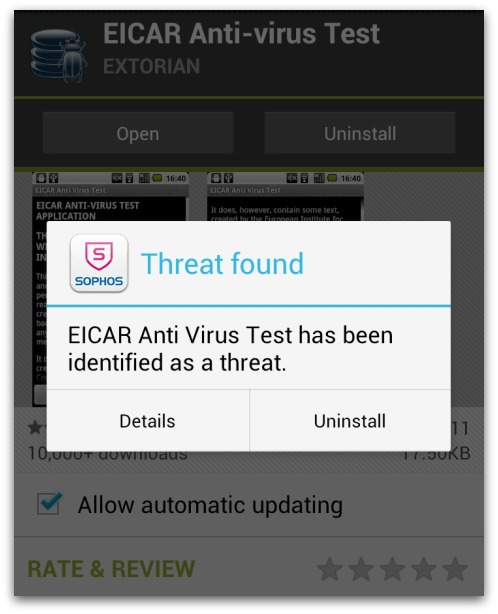
Sophos Offers Free AntiVirus Solution for Android Users

android antivirus
Sophos has crafted a freebie antivirus app dubbed Sophos Mobile Security for Android-powered devices.
The software tries to protect smartphones against malware, warns fandroids of privacy-invading programs and can lock down a gadget if it's lost or stolen, ideally without taxing either performance or battery life. The software, released on Monday, can be downloaded from Google Play.

Several free-of-charge security scanners already exist for the Android platform, but the performance of some in recent tests has been mediocre. Paid-for products from the likes of Kaspersky and F-Secure tend to perform better. Sophos is positioning its product against the more capable freebie Android scanners from the likes of Lookout and AVG (Droid Security), but with the additional benefit of offering hardware loss and privacy dashboard features more associated with paid-for products.

Sophos Mobile Security is designed to automatically scan apps as users install them, thus blocking undesirable software. The technology also locates lost or stolen Android devices as well as shielding personal information from thieves.

Sophos has entered the mobile security zone a few years late, but rather than corner the freebie Android scanner market, its new software will be used to market a managed Enterprise version, due to be released this year.

The strategy makes sense because it dovetails neatly with the bring-your-own-device craze that's allowing consumers' technology choices shape corporate IT, including the mobile security products that are used.

Android malware last year increased 155 percent from 2010, according to Juniper Networks.

"We're seeing no slowdown in the number of malicious apps, as more smartphone owners use their devices to not only store personal data, but also access social networks and the internet," said Matthias Pankert, vice president of product management, Sophos. "This usage, coupled with the increase in Bring Your Own Device (BYOD) activity, is making Android devices a compelling target for cybercriminals and malware."
Sophos released a freebie security scanner for Macs two years ago. The plan in that case was more about improving home punters' cyber-hygiene than pushing licences, but mobile security is much more integral to the corporate plans of the UK-based security software firm, so Sophos Mobile Security is not a philanthropic gesture.

How To Transform your Kindle Fire into an Android 4.0

With a vibrant 7-inch IPS display and a 1GHz dual-core processor, the $199 Kindle Fire can make for one lovely tablet. With a bit of work--but no hardware modifications--you can set up Android 4.0 on your Kindle Fire and thenceforth use the device as a powerful general-purpose tablet despite its incredibly low price. Email, games, Web browsing (with Chrome for Android or any other browser)--the Kindle Fire can do it all.


This guide is directly based on the excellent guide written by XDA Developers user Kinfauns. Kinfauns's guide and his Kindle Fire for Beginners guide are highly recommended reading, but they're fairly lengthy. I've simplified the process and then tested it myself, so I can walk you through all of steps; but please use caution when tinkering with your gadget, and understand that ProHackingTricks accepts no responsibility for the consequences. That said, read on for a quick step-by-step procedure that you can follow to transform your Kindle Fire into an Android 4.0 tablet!

Requirements

  • A Kindle Fire with a full battery (if it's not full, take time to recharge it fully).
  • A USB cable for connecting the Kindle Fire to your computer.
  • A Windows computer that you have Administrator rights for.
  • fbmode by XDA Developers user Pokey9000.
  • The FIREFIREFIRE bootloader for Kindle Fire.
  • The TeamWin Recovery image, also known as TWRP.
  • The Kindle Fire Utility, a third-party toolkit that simplifies many tasks and includes vital drivers.
  • An ICS (Android 4.0) ROM for the Kindle Fire. You can pick one from this list of ROMs. For this wow-to, we'll be using AOKP, a well-regarded third-party ROM. The latest AOKP version at the time of this writing is build 38, but it's a good idea to check for the most recent version.
  • [Optional] The Google Apps bundle, including Gmail, Google Play, and other essential Android apps. This is packaged separately from the ROM for legal reasons. If you download AOKP, you can find Google Apps for AOKP release 38, under GApps (the last link on the page).
  • A willingness to void your warranty and to use the Windows command line. This how-to does not use graphical tools.

Install the Kindle Fire Drivers

For this procedure to work, your computer must correctly recognize the Kindle Fire as an Android device. Here's how to make that happen:

1. If your Kindle Fire is connected to your computer, unplug it.

2. The KFU zip contains a folder called Kindle Fire Utility. Unzip the contents of this folder into a new folder, c:\kfu.

3. Run the install_drivers.bat file that's in the c:\kfu folder. Windows will pop up a UAC prompt, and then start the Kindle Fire Driver Installer.

4. As you step through the installer, you'll receive a Windows Security alert warning you that the drivers are not signed. Install the drivers anyway.

5. The installer should complete successfully and show a confirmation dialog with the driver name:

Kindle Fire driver installation confirmation.

Verify That the Drivers Were Successfully Installed

Before doing anything risky with your Kindle Fire, make sure that your PC fully recognizes it as an Android device:

1. Connect the Kindle Fire to your computer and wait for a few moments while Windows recognizes it (even if you've plugged it in before).

2. Run Device Manager (Click Start, right-click My Computer, and then select Manage > Device Manager).

3. You should see the Kindle Fire registered as an Android Composite ADB Interface, under Android Phone in the Device Manager tree.

If you see this listing, you're good to go. If this isn't exactly what you see, you'll need to do some troubleshooting; for that, refer to the original guide which has an extended troubleshooting section under the heading "What can I do if the drivers won't load?"

Switch to Fastboot Mode

It's still not too late to turn back. Up until this point, you haven't done anything to the Kindle itself. But now you're about to take the first step that involves making changes to the tablet. So, without further ado:

1. Make sure that the Kindle Fire is still connected to your computer.

2. Create a new subfolder, c:\kfu\software.

3. Unzip fbmode.zip into c:\kfu\software. It contains a single file, called fbmode (with no suffix).

4. Open a command prompt window, and copy fbmode into a user-writable location on the Kindle Fire using ADB:

adb push C:\kfu\software\fbmode /data/local/tmp/

5. Edit fbmode's permissions so that it can run:

adb shell chmod 755 /data/local/tmp/fbmode

6. Run fbmode to switch to fastboot mode:

adb shell /data/local/tmp/fbmode

7. Using ADB, reboot the Kindle Fire:

adb reboot

At the end of this process, your command prompt window should look like this:

Command prompt window after switch to fastboot mode.

Your Device Manager should look like this:

The meaning of this notation is that the name of the device changes from Android Composite ADB Interface to Android ADB Interface.

Finally, the Kindle Fire itself should look like this:

Kindle Fire screen after switch to fastboot mode.

The Fire will simply display a logo and stay put. It's not "stuck"; rather, it's in fastboot mode, awaiting further instructions.

Install a Recovery Image

Next, you'll install a recovery image--a miniature operating system that you'll use later to flash the complete ROM. The recovery image will also come in handy for creating full backups of the device, among other things.

1. Copy the TWRP .img file into c:\kfu\software. At this writing, the latest TWRP image is named openrecovery-twrp-blaze-2.1.1.img.

2. Open a command prompt window at c:\kfu\tools and install the image:

fastboot -i 0x1949 flash recovery C:\kfu\software\openrecovery-twrp-blaze-2.1.1.img

3. Change the boot mode to Recovery:

fastboot -i 0x1949 oem idme bootmode 5001

4. Reboot into TWRP:

fastboot -i 0x1949 reboot

At this point, your command prompt should look like this:


And your Kindle Fire should look like this:


Install a Custom Bootloader

You are well into the process now. Next, install the FIREFIREFIRE custom bootloader:

1. Take the FIREFIREFIRE Zip file and place it (still zipped) into c:\kfu\software. At this writing, the latest filename is called fff-u-boot_v1.4a.zip.

2. Copy FIREFIREFIRE into the Kindle Fire's /sdcard directory:

adb push C:\kfu\software\fff-u-boot_v1.4a.zip /sdcard/

3. On the Kindle Fire, press the Install button. Navigate to /sdcard if needed (you should already be there by default), and select fff-u-boot_v1.4a.zip.

4. Swipe to confirm. You should get a success message:


5. Back up the stock OS so you can roll back to it at any time. In the root TWRP menu, select Backup, modify the options if you like (the defaults are fine), and swipe to confirm. Backing up will take a while, which is one of the reasons why starting the process with a full battery is so important.


Flash the Ice Cream Sandwich ROM

You're almost there! Now you just need to copy the ROM and flash it. As noted at the outset, we used AOKP in our test runs, but different ROMs may have different flashing procedures. Read the documentation for the ROM of your choice.

1. Place the .zip files containing the ROM image and Google Apps into c:\kfu\software.

2. Push the ROM and Google Apps onto the device:

adb push C:\kfu\software\aokp_otter_build-38.zip /sdcard/ adb push C:\kfu\software\gapps-ics-20120429-signed.zip /sdcard/

3. In TWRP, select Wipe > Factory Reset. This will remove all existing files from the data and cache partitions, but it won't affect the /sdcard directory, which contains media files.

4. In TWRP, select Install. Navigate to the ROM .zip file that you placed on the device, tap it, and swipe to confirm. This will take a few moments:


5. Once that is done, tap the Back button in the upper right corner, and repeat the process with the Google Apps .zip file.

6. Tap Reboot System in the lower right corner, and boot into your brand-new Android 4.0 experience! If you wish, you can now remove the ROM and Google Apps .zip files from your device.

You should have a fully functioning Android tablet in your hands, so play around with it and let us know what you think. If you run into any problems during installation, share them in the comments below so that the community can pitch in and help you solve them. Good luck!

Tricks n Tips on How To Upgrade Your Android Phone

android
The biggest problem with the Android platform has been how slowly many phone makers release the latest version of the OS for their older models. It's also not unusual for them to never do so. (A company may not want to spend resources on phones they no longer sell; or, they and the carrier for a particular model may not agree on when to provide an update.)

If you own such a neglected phone, and don't want to buy a new one, then your best shot is installing unofficial Android firmware on it.

The following is a primer on what you should know about the process of installing unauthorized Android firmware. Each phone can have its own unique steps for doing this, so you should follow instructions for your specific model.

1. INSTALL AT YOUR OWN RISK

Installing unofficial OS firmware on your phone will likely render whatever warranty from its maker you have on it null and void.

Thoroughly read the installation instructions for your specific phone model and then follow them carefully, taking time and patience. Though the odds of bricking your phone -- rendering it inoperable because of something going wrong during the install process -- is fairly low, it can happen and especially so if you rush through things.

Be aware that some features on your phone running its current version of Android may no longer be available after you successfully install a custom Android firmware. Other features could be buggy or have quirks.

2. TWO CHOICES: CYANOGENMOD OR MIUI

In the unofficial Android firmware development community, there are two major choices: CyanogenMod and MIUI. Both are built on the Android source code officially released by Google, and their latest versions are based on Android 2.3 (codenamed Gingerbread). As of this writing, the volunteer development teams of both projects are working to get new versions built on Android 4.0 ("Ice Cream Sandwich").

What's the difference between the two? CyanogenMod sticks with the basic, default components of Android that come with its source code release; its UI is "clean," devoid of unnecessary extras. MIUI completely overhauls the stock Android UI with one that resembles that of Apple's iOS.

If your Android phone is (or was) a popular model, it is probably supported by either the CyanogenMod or MIUI community.

If not, there is still a chance that somebody may be working on a port for your specific phone; search its model name in the official community forums for CyanogenMod or MIUI to see if there is such an on-going effort. (An excellent source to check is Android Forums.) But know that some or several features of your phone may not work if you install such an experimental, work-in-progress build of CyanogenMod or MIUI that is not officially sanctioned by that OS's community.

3. ROOT YOUR PHONE

Before you can start to do anything to your phone, you'll need to root it, which means basically to unlock the security settings put in place in the OS to prevent it from being altered. Check out GingerBreak to help you conveniently root your phone.

Unfortunately, this app tool might not work on more recent Android phones. This guide provides a list of instructions for rooting several specific phone models.

4. BACK UP YOUR CURRENT FIRMWARE AND PHONE DATA

You really want to do this if you need to re-install your phone's original firmware and data later (e.g., something goes wrong when you install the unofficial Android firmware; you decide you don't like CyanogenMod or MIUI; or, you need to reactivate your phone with its carrier, something which you cannot do when running either of these unofficial OSs on it).

The easiest way to do a back-up is to install ClockworkMod ROM Manager on your phone. Run this app, and select "Reboot into Recovery" from its menu. This downloads and installs a recovery image profile for your phone, restarts it, and loads a plain-looking text menu, where you can select the back-up process.

After the copy of your phone's firmware and data is made, you can move it to a computer for safekeeping. Connect your phone by USB cable to your computer, then simply drag-and-drop the backup's folder (it's on your phone's SD card under the folder "clockworkmod") from your phone's SD card to the latter device.

5. PREPARE GOOGLE'S DEFAULT ANDROID APPS FOR INSTALLATION

If you're installing CyanogenMod: Unless you want to keep your to-be-upgraded phone clean of Google apps, you'll need to install them separately. CyanogenMod does not include the standard Google apps that typically come pre-installed on an Android phone. So you'll have to download a ZIP file that contains the installation packages for apps such as Google Search and, most importantly, the Android Market. Put this ZIP in the main root directory of your phone's SD card.


6. INSTALL THE CUSTOM ANDROID FIRMWARE

This is the big deal. Download the CyanogenMod or MIUI firmware designed specifically for your phone model, which comes in the form of a ZIP package, and save it in the root directory of your phone's SD card.

Once again, run the ClockworkMod ROM Manager app, and select "Reboot into Recovery." After your phone restarts into the ClockworkMod Recovery tool, you may need to wipe out its data and cache, and format its "/system" directory -- this depends on whether you are installing CyanogenMod or MIUI, so you should refer to the instructions that specifically are for your phone.

Next, you select the ZIP file of the custom Android firmware you placed in the root directory of your phone's SD card, and start the upgrade process. It normally takes less than two minutes. If you're upgrading to CyanogenMod: Don't reboot your phone just yet... repeat the above step for the ZIP file containing the Google Android apps.

You return to the main menu of the ClockworkMod Recovery tool and select to reboot your phone. After about 2 minutes, it should boot and then run on the custom Android firmware.

7. ENJOY YOUR NEW ANDROID PHONE!

Besides updating your phone to a more recent version of Android, CyanogenMod and MIUI can also give it new features and tools, which include better power management, Wi-Fi tethering, stronger security settings, and broader personal customization of the UI. Many users report their phones run faster with one of these unofficial OSs than with the version of Android that came originally installed on it.

Android Malware Now Exploits Steganography

android logo
Summary: Malware makers are turning to quite sophisticated tricks to disguise the true purpose of rogue applications.

Security firm F-Secure have released details on how Android malware makes use of steganography to hide the control parameters for rogue code.

First, what is steganography? It’s the technique of hiding messages within something else, in this case, an icon file.

F-Secure first suspected that Android malware was making use of steganography when researchers came across this line of code:

android malware

Further digging revealed more code, and it soon became clear that the image file being referenced here was the icon file bundled with the rogue application:

android malware

So what’s this hidden information used for? It’s used to control how and when premium rate SMS messages are sent from the victim’s handset, which, as far as the bad guys are concerned, is the primary purpose of the rogue application.

You’ve got to admit, that’s a pretty clever use of steganography.

Android Bug Allows Hackers to Install Malicious Code Without Warning

android-malware
It's been more than a month since researchers reported two serious security vulnerabilities in Android, but so far there's no indication when they will be purged from the Google-spawned operating system that's the world's most popular smartphone platform.

The first flaw allows apps to be installed without prompting users for permission. The permission-escalation vulnerability permits attackers to surreptitiously install malware in much the way a proof-of-concept exploit researcher Jon Oberheide published last year did. In that case, an app he planted in the Android Market and disguised as an expansion pack for the Angry Birds game secretly installed three additional apps that without warning monitored a phone's contacts, location information and text messages so data could transmitted to a remote server.

“The Android Market ecosystem continues to be a ripe area for bugs,” Oberheide wrote in an email. “There are some complex interactions between the device and Google's Market servers which has only been made more complex and dangerous by the Android Web Market.”

The second bug resides in the Linux kernel where Android originates and makes it possible for installed apps with limited privileges to gain full control over the device. The vulnerability is contained in code device manufacturer have put into some of Android's most popular handsets, including the Nexus S. The bug undermines the security model Google developers created to contain the damage any one application can do to the overall phone.

Oberheide and fellow researcher Zach Lanier plan to speak more about the vulnerabilities at a two-day training course at the SOURCE conference in Barcelona in November. In the meantime, they put together a brief video showing their exploits in action.


One of the hopes for Android a few years back was that it would be a viable alternative to Apple's iOS, both in terms of features and security. With the passage of time, the error of that view is becoming harder to ignore. And if i'm not wrong, Google developers have updated Android just 16 times since the OS debuted in September 2008. The number of iOS updates over the same period is 29.

It's a far cry from the approach Google takes with its Chrome browser, which is updated frequently, and has been known to release fixes for the Flash Player before they're even released by Adobe.

Even more telling, when a new version of iOS is released, it's available almost immediately to any iPhone user with the hardware to support the upgrade. Android users, by contrast, often wait years for their phone carriers to supply updates that fix code execution vulnerabilities and other serious flaws.

Owners of the Motorola Droid, for instance, are stuck running Android 2.2.2 even though that version was released in May 2010 and contains a variety of known bugs that allow attackers to steal confidential data and remotely execute code on handsets the run the outdated version.

Oberheide has more here.