Showing posts with label iPhone. Show all posts

Top 5 Server and Admin Applications for Android and iPhone in 2020


Top 5 Server and Admin Applications for Android and iPhone in 2020


No matter what is the nature of your work, whether you are a webmaster, server administrator or an IT professional, the ability is to deal with your admin tasks and the server is your utmost priority. In this article, we are going to discuss the top five server and admin applications that is suitable to your iPhone, and Android mobile gadgets.

1. AndFTP

For those who are not yet familiar about AndFTP it serves as an SCP, FTP, and SFTP and FTPS client. Moreover, AndFTP let the user to handle number of FTP configurations; as well it provides features like download and upload and sharing management. As well AndFTP allows the user to delete, rename, open, or update permissions, and also to run custom commands.

2. ConnectBot

ConnectBot act as a Secure Shell client intended for Android users, as well it creates secure connection through using a shell even the gadget is in the remote distance to transmit files and data back and forth to your phone. Furthermore, ConnectBot let the user to handle numbers of SSH sessions, as well allow them to copy and paste between other applications, and to build protected tunnels.

Jack Wallen an award winning writer of Linux.com stated that ConnectBot is a must have app, in fact he recommend this app to the Linux admin who are using Android phone.

3. ServerMonitor

ServerMonitor is an app intended for iPhone users, it uses SSH protocol to link machines remotely to assists with your workstation and server monitoring requirements. The multi-protocol supports include the following: FTP, SMTP, HTTP, IMAP, MySQL, HTTPS, DNS, POP3, Ping and SSH.
Although there is no much review regarding this app but the general response seems to be optimistic. Based on the feedback from the users one thing they want to be added in this app on the next update is the ability to view all list of running processes and to view how much memory they occupy.

4. iSSH – SSH / VNC Console

The iSSH – SSH / VNC Console for iPhone is an SSH and Telnet emulator that is fully featured with ANSI, VT102, VT100, and VT220 incorporated with tunneled X server, RDP client and VNC client. As well this app has the ability to carry simultaneous connections with total terminal compatibility, intuitive user interface, and configurable macro and key options.

5. Network Utility

Network Utility let the user to check the status of their server or websites through their Apple device or iPhone anywhere. Network Utility is fully featured with TCP/IP Port Scan, ping (ICMP Echo), IP address information, Whois Query, GeoIP Lookup, and more.

For me this another iPhone app that seems to be gathering mixed reviews. Some user approved its efficiency and its user friendliness, but other user rising complaint that this app causes their device to freeze up that can only be fixed through restarting the device. Users as well object about the absence of subnet scans. The decision is still out on this app. But the best thing we need to do is to try this and experience how it holds up.


About the Author:
Stacy Carter is a tech writer and freelance blogger laying out for tech news via online exposures. She is the author of the site: iPhone Spy where you can get valuable information about spy software program on your cell phone.
Designing for iPhone X: Tips and Tricks

Designing for iPhone X: Tips and Tricks

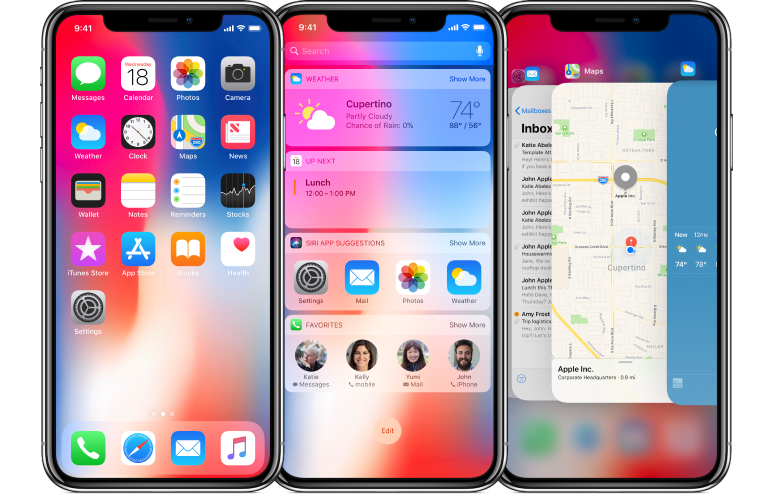
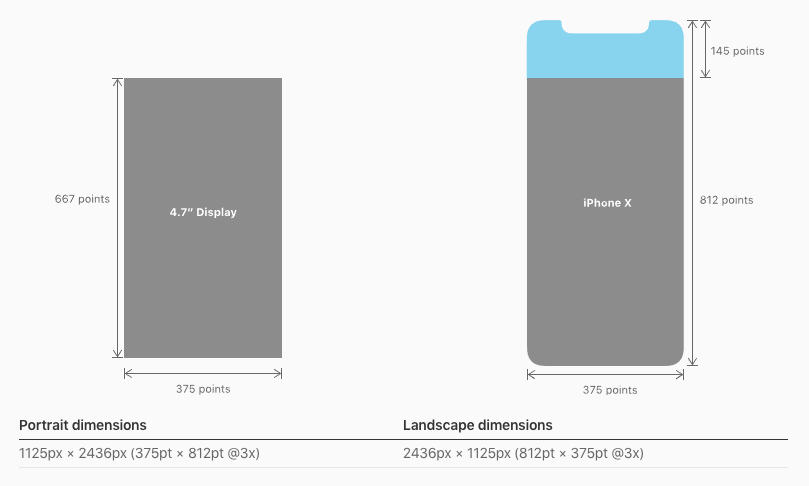
iPhone X is already here redesigning the way the content is displayed and creating a brand-new experience. It has an edge to edge Super Retina Display with a resolution of 1125×2436 px. iPhone X features a special cut-out at the top of the screen. Thus designing apps for this futuristic machine brings new challenges as well as opportunities. Let’s learn how to design an app or game to feel and look great on iPhone X.

Screen Sizes

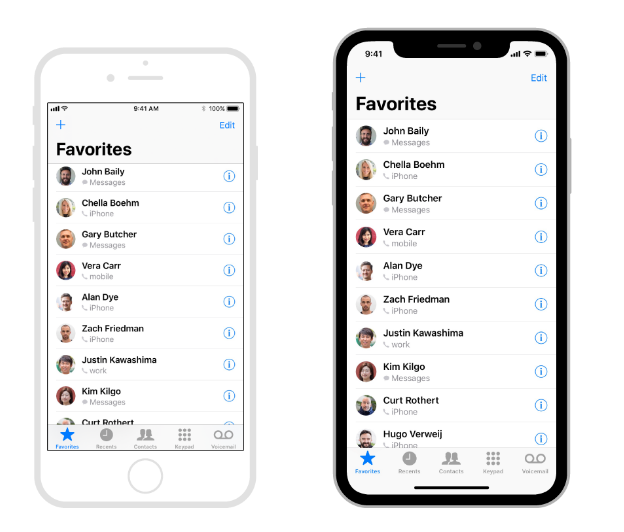
iPhone X Screen Sizes
Source: Apple
Though the screen width remains the same for iPhone X, and it's 145 pt taller than the iPhone 6, 7, and 8. Such screen dimensions result in 20% more vertical space. When working out the app design for iPhone X, try not to make the UI too complex taking advantage of all new features (cut-out, new home indicator, round edges).

The good news is if you have a native app for iOS, you don’t have to make any changes - the app will be automatically adopted for the new iPhone X. All navigation bars, collection views, tables, and tab bars will be automatically positioned. When designing, you must ensure that the layouts fit the screen perfectly. If your app has a custom layout, you may need to update it for the new iPhone X. With the Auto Layout, everything will be easy.


Designing for iPhone X: Custom Layout
Source: Apple
Specific challenges may occur with full-screen images. If you use them, consider updating the app while they can be cropped and some essential elements may be hidden.

Source: Apple

Center your content

The device features new sensors and particular screen corners so make sure that your UI won’t get clipped. Speaking about the content, it’s preferable to place it in the center with symmetrical insets. Again with the Auto Layout, your content will be automatically adapted to the safe area of iPhone X. Nothing will be hidden behind round corners, home indicator or sensors.
Designing for iPhone X: Center your content
Source: Apple
Note, Apple highly recommend not to hide the cut-out and curved edges. So forget about placing black bars.

Brand-new status bar

Designing for iPhone X: Staus Bar
Source: Apple
Due to the sensors, the new bar has got 2 parts. It has become nearly 2x taller than on iPhone 6,7, and 8 (previously it was 20 pt, and now it’s 44 pt). So if your app features a fixed status bar and content just below it, consider updating the app in order not lose anything. Again, don’t forget about the safe area while designing a new app or iOS.

Moreover, the status bar should be visible all time. Since the screen is bigger and taller, it would be a good idea to unhide the bar. It is essential to point, that the new status bar doesn’t change its height when the device records voice or tacks the location.

Where to place interactive controls?

Since the physical home button was replaced by the home indicator, the place of interactive controls should be changed. There should be more space for gestures and swiping up around the home indicator. And if there are interactive controls, how will the user go back to the home screen? The users may accidentally use swiping up, and the UI of an app will be difficult to reach since every time they swipe, they will go back to the home screen.

However, you should and have to use the function bars and tab bars but try not to interfere with the home indicator.

Designing for iPhone X: interactive controls
Source: Apple

Smart home indicator

iPhone X features a redesigned home indicator. Apple decided to opt out of a physical home button. It’s a small white line on the bottom of the screen. To get back to the homescreen, you can swipe up from any app.

With the new iOS, the users get an adoptive home indicator which hides automatically when the screen is inactive and appears when you relaunch the app. This function comes in handy when listing photos or watching videos. Besides the auto-hide, the home indicator adapts to the color of your app’s background and changes it automatically.

With the new smart home indicator, there is no place for button pressing, everything is controlled by gestures. Moreover, you can use custom gestures in games as well as set own gestures to control the device.

More colors than ever before

Designing for iPhone X: Colors

iPhone X features the new Super Retina Display with the support of P3 colors. And it means that the colors are richer and more saturated when compared to the older devices.

Improved security with Face ID

Previously, iPhones were fitted with Touch ID. And iPhone X features Face ID for authentication to keep your data secure. Face ID features state-of-the-art algorithms to scan your face and unlock iPhone X. In case your app needs Apple Pay or other identifications, don’t integrate Touch ID for that, take advantage of the new technology brought up by Apple.

Video

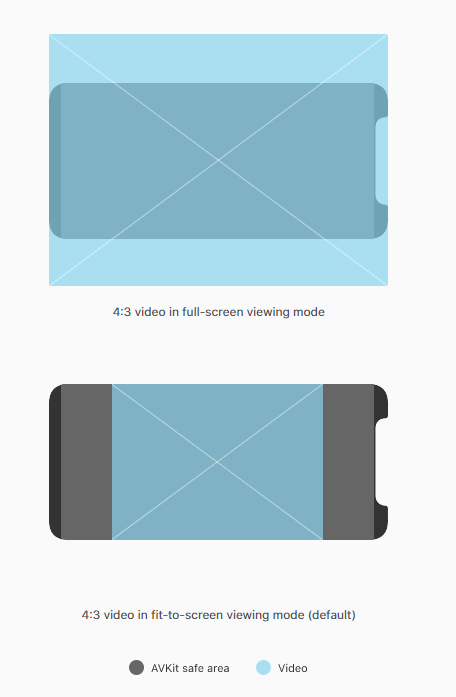
The new screen of iPhone X changes the way video is played on the device. The system video player has two viewing modes - full-screen and fit-to-screen. Make sure that all custom video players behave as expected. The video should fill the display when played. If it fails, it may result in too much cropping. Moreover, it would be great if the users will be able to switch between two viewing modes.

Apple advises keeping the original aspect ratio since the iOS won’t be able to scale the video based on the viewing mode correctly.

Designing for iPhone X: Full screen - fit to screen
Source: Apple

Where can I preview my app UI for iPhone X?

The good news is you can use Xcode 9 stimulator to preview your app. And check if something needs to be updated for iPhone X.

In a nutshell

Though the new iPhone X stands out from the crowd providing absolutely new user experience, designing apps for iPhone X is still a smooth sail. Take care of the new display capabilities and its dimensions and make most of them.


Author bio:
Helen Morrice - Technical writer and copywriter at IDAP Group. Say “hi” to us on Facebook or Twitter.

How to turn your iPhone into a Wi-Fi hotspot?

How to turn your iPhone into a Wi-Fi hotspot?
There are many good things about turning your iPhone to a wireless hotspot. For example, you are travelling somewhere and you are carrying your laptop or tablet. You have two options, you can work offline on the tablet or laptop, or browse the internet on a very small screen. It would be great if you could use your 3G or 4G connection of the iPhone and go online on your laptop or tablet, right?

The good thing is that you can easily do this with your iPhone. It is quite easy to share your cellular connection with other devices you use. This feature is popular as tethering and it is really helpful -you don’t have to look for a café or a restaurant to use the internet or search for a free public hotspot.

Turning your iPhone to a wireless hotspot is quite easy. However, we recommend you to contact your carrier first and see if they allow this option or whether it is included in your monthly plan. This will exclude the chances of any unplanned extra fees. You also have to take care of your monthly bandwidth quota. In case you have a limited bandwidth for the month, make sure to use this option only when you really need it.

How to create an iPhone hotspot

Tethering basically transforms your iPhone to a wireless router just like the ones we all have at our homes. Of course, you won’t be able to login to the new router using its default IP (for example 192.168.1.1 and password) and tweak its settings, but it practically does the same job. Then the iPhone sends wireless signal which enables us to connect our devices to the internet. The laptop or tablet can connect to the iPhone either by USB, or Bluetooth or wireless. It is quite good to know that your beloved iPhone can do this. So, if you want to turn your iPhone to a wireless hotspot follow these steps:
  1. Tap the Settings icon
  2. Then tap on Cellular and turn on Cellular Data. Make sure to set it to 3G or 4G in the Cellular Data Options.
  3. Go back and tap Personal Hotspot and turn it ON..
  4. Tap on Wi-Fi Password and enter a password you would like to use to connect your devices. At the same time this will prevent others from connecting to your wireless hotspot.
  5. On the laptop click on the Network icon and from the available networks select the one labeled as “iPhone” or similar.
  6. Click on that network name and enter the password you have set up earlier.
Now you will be able to browse the Internet on any device you connect to your personal wireless hotspot. However, don’t forget you are using the data connection from your iPhone. Maybe you won’t get so good performance as with the Internet connection you have at home, but we are sure you will be able to do all the tasks you want to do.

Don’t forget to turn OFF the hotspot when you don’t use it since it will drain your iPhone battery very quickly.

What are the dangers of creating an iPhone hotspot

There is always a possibility that someone will try to connect to your iPhone hotspot and use your bandwidth without your knowledge. If you have set up a password as we have mentioned before you shouldn’t worry about this. However, if someone guesses your password you will be notified when he or she gets connected to the wireless hotspot. If this happens you will be notified so you can react in time.

Another thing you have to take good care about is the bandwidth. It is quite easy to forget paying attention to it while you are surfing. However, you can always use third-party apps to control the bandwidth. At the same time avoid downloading large files or updating your computer. This can consume large amounts of data and very soon you will hit the limit. So, always make sure to pay attention to this. Plus, when you use your iPhone as a hotspot you will notice the battery gets drained faster than usual.

How New iOS Features Strike the Technology World


The introduction of IOS 10 has created much hustle and bustle among the update cravers. It has been successful so far. IOS has ignited the flare of innovation in almost every built-in application. The IOS App Development Company has marked its success when millions of users upgraded their IOS software and left beaming reviews telling how every feature has lightened up the interface.

Anyhow, keep reading as I am about to fill you up with something which surely going to amuse you. There are much more amazingly innovative features in IOS 10 along with those Apple announced, back in June. I have gathered the list of those features below. Scroll down and cast an eye over the awesomeness!

Interesting features in Message

Read-Receipt feature

Unlike IOS 9 the new IOS 10 also have read receipt feature. The feature, however, is upgraded with some new facilities. In IOS 10 you can select the individual friends and send them read-receipt. You are given a choice to select the desired one. The rest of your conversation follows the default setting. You can also turn off the feature whenever you want.

Read-Receipt feature

Inbuilt image search

IOS 10 gives a chance to chat with your friends using funny GIF. Now those days are gone when the only messenger was the source for GIF keyboard as IOS 10 also facilitates us with this newness.

Emoji and new effects

Messages in IOS 10 is enhanced with replaceable and bigger sized emoji. Effects like invisible ink, tap backs, bubble effect, digital ink and stickers are introduced in messages. With the evolution of such eye-catching features, conversations have now become more entertaining.

Emoji in iPhone

The emoji and the effects are collectively adding fame to this new update. Now you can share your stories and happiness adding the touch of expressions in them. If it’s something exciting then add background effect, enhance the text into larger font and then boom!!! It will appear like a celebration. If you wish to give your loved one a cute hidden message then type it with invisible ink, simply rub with a fingertip and the message will appear on the screen leaving a cute memory on the mind. There are four different types of expressions along with this you can tag induvial messages too. Keep pressing the selected message and six options will appear on the screen.

Emoji and new effects

Modified version of Maps

The modified version of Apple Map allows the user to easily pan and zoom to navigate. The navigation software is extraordinarily smooth and it facilitates the users to conveniently check the points of interest.
 
IOS 10 Update Siri

Among the many outstanding features, updated version of Siri is the best of all. Now Siri is available for third parties too. Which means you can send commands to other applications, book rideshare, order a pizza, transfer money to friends or family and many other benefits can be availed.

Parking Assistant

Those days are gone when you have to spot your parked position as parking assistance is here to help you in tracking the place you parked your car at. The specialty of this feature is that it will only inform you about the position when you park at any non-parking spot. This application is connected with Apple Map.

Parking Assistant

Organ Donation Sign Up

What can be best than to saving lives in a day? IOS 10 gives you a chance to save the life by providing you easy access to National Donate Life Registry. Simply sign in and fill the form and help patients by donating your organs. Millions of patients across the globe dies due to insufficient organ supply but now you can play your part in helping them.

Sharing Notes

With IOS 10 you can easily share your notes with your friends. Click the option on the top right corner and select the contact. Whenever you add any new note to your list they will be able to see it. Hence IOS 10 is playing its role in strengthening relationships as it is now easier to deliver your thoughts.

Clicking Pictures while listening to music

I know how disturbing it gets when you are asked to click a picture in a middle of your favorite song. You have to choose between the cameras of your music but now that helplessness is gone as IOS 10 allows users to click pictures while listening to their music. Isn’t it great!

Wake up Alarm clock

Do you want to make IPhone your friend? If so then without wasting any second update your software as it will provide you an IPhone alarm clock assistant. Along with updating many other features IOS 10 has enhanced the alarm clock too. It allows you to have two separate alarm clock one is the ordinary clock and another one is Wake up Alarm clock. This alarm clock guides you about your sleeping hours. It will remind you when you should go to your bed and when you should wake up. In short, it will manage your whole sleeping routine.

Wake up Alarm clock

Mail Application

The mail app is enhanced too. It is now easier to filter messages by just one click. You just have to select the categories and it will get filtered. Along with this, the conversation threads are also managed properly. You will be able to see the full thread in your application.

Two features in Home Button:

IOS 10 has enabled users to have two different features in a single home button. Upon updating you will be asked to press the home button in order to enter the passcode but if one doesn’t feel like using this feature he can switch to previous setting by going to Setting > General > Accessibility > Home Button. Voila! Your previous button is back.

Hence these were some of the amazing features that IOS 10 has introduced but there still are a lot many features which you will discover. So it’s better to be updated then to be outdated.


About Me:
I am a content writer who have the keen interest in technology specifically covering the topics related to Android and IOS App Developing Company. I love to research and have been in this profession for five years. Besides this, I’m preparing myself to become a ghostwriter. I love to read and learn. My area of expertise in writing is related to industries like technology, designing particularly applications and research based work.

Email: Ayesha.Sameen@weatherlycloud.com
URL: https://www.appaustic.com/android-app-development

What’s New on the iPhone 6S

What’s New on the iPhone 6S
Image Source http://goo.gl/XNosfH 

The latest Apple product is being released, and Mac lovers have been lining up to get their hands on the iPhone 6s. So what makes this product so special? Besides the expected software updates and advanced Touch ID, faster 4G and Wi-Fi connections, a sleeker design with a rose gold finish and of course iOS9; what are some of the new features that iPhone-fanatics can look forward to? Since Bend-gate there have been speculations regarding just how durable the latest iPhone will be. Apple have addressed this and have engineered a new alloy of 7000 Series aluminium, the same used in the aerospace industry, to ensure your phone won’t bend in your pocket. But that’s not all they have to offer.

See some of the top new specs below:

3D Touch

This is perhaps the most exciting of the new features of the iPhone 6S. This revolutionary technology combines software and hardware to bring a new dimension of functionality to using your phone. As well as the now familiar touch gestures like Tap, Swipe and Pinch, 3D Touch introduces what Apple refers to as “Peek and Pop”. Basically, with 3D Touch your phone registers how much pressure you put on your screen. If you select an icon/message/web page, it will open or Peek out; so you get an idea of what it contains. If you want to go into that web page or message you just have to press a little harder and it will “Pop” open. It also enables the user to make even shorter shortcuts to the camera, messaging and map apps from the home screen. Seeing Apples iPhone 6S in action, it appears to be a sleek transition and one which makes the phone that bit more covetable to this tech-loving writer.

Breath-taking New Camera

The camera in the iPhone 6S has 12 megapixels and the shots it takes are absolutely stunning. It’s clearer than my own vision. Apple claims that a camera this good won’t need re-touches or filters on photos – although I doubt that will stop all the Instagrammers out there. If anything, this will just step up their game. The new iPhone can also take videos four times 1080p meaning your videos will look like something from the silver screen, in the palm of your hand.

Do you take a lot of selfies? The front facing camera – for Facetiming and selfie-taking – is high definition 5 megapixels. All the better to see yourself with. The iPhone 6S also has a new function: Retina Flash, a flash three times brighter than the previous generation. This, combined with Apple’s True Tone Tech, allows you to have perfectly lit selfies no matter where you’re taking the photo. 

Live Photos

As well as having a crisp and clearer shot, the iPhone 6S also enables the user to take Live Photos, literally capturing a moment in time just before and after you take the photo, with movement and sound. Like sleeker gifs if you will. You can activate the live photos simply by selecting a photo and you can also view them on your other Apple devices, and share them around.

Computer-Like Performance

The iPhone 6s is run by a 64-bit A9 chip. This chip empowers the iPhone 6S which 70% faster CPU (than the previous iPhone) and 90% GPU; meaning you can enjoy games, apps and videos with far better results. Apple goes for far as to say that it is as immersive as playing a video-game on your desktop or game console.

So, will you be lining up with the rest of them to get this beauty?


Authors Bio:
Orlaith Costello writes for The PC Doctor, a fan of all things tech-related, she’s had a keen interest in IT and programming since the age of 8. Nurtured from a young age she has shares her opinions on IT news, smartphones, apps, or Google’s latest updates.

IT Rumors iPhone 6 Will Be The Low-Cost Phone

IT Rumors iPhone 6 Will Be The Low-Cost Phone

Just months ago the launch of iPhone 5 around 100 countries, Apple has declared rolled-back in other section orders, apparently in reply to lower than expected require for its novel flagship of Smartphone product.

Why is this happen? This is because Apple cuts some section orders, which is not so clear. However, it will affect to the response of some users, matters related to iPhone prices, or might affect the development of short item life cycles into iPhone or iPad – that can be estimated, so that the reduction of marketing window on each launched iOS gadget.

In addition, the supply restraint said that weighed down on iPhone 5, at times on the first quarter, for the most part on the first 2 months – when several keen followers were expecting to upgrade. The steep 100 to 200 dollars price cut on Apple’s previous gadgets, like iPhone 4 and iPhone 4S are also expected involved selling decisions. As Apple racked-up on implausible 26.9 million ‘iPhone sales’ during of its latest quarter or 58% add to prior year’s sales. And there no reports about the prices of iPhone 4S and iPhone 5, because Apple does not escaping on its individual ‘model sales’, as well as on its iPhone listings also comprise the currently very pleasingly priced with ‘99 dollars’ iPhone 4S and the ‘free’ iPhone 4.

On the other hand, iPhone 6 is very hot in the ear among all customers. There are many rumors of the next model of iPhone including on its unique designs; better sharp display, eco-friendly battery, as well as it will be sale on lower price.

In point of view, Apple always give satisfaction to their customers including wireless charging, Wi-Fi standards, better 4G LTE, eye tracking, camera, processor, screen, home button, etc.

However, with this latest rumor about iPhone 6 that will be on the cheaper price. This is very impossible, because in terms of business, lots of things to be considered, especially to the overall expenses.

For example, a simple vendor selling his items on the lower price without turn-back to his total income, well, this is unfair to the vendor right? Just for the sake of customer’s desire.

In conclusion:

If you are planning to really have iPhone 6, start now to save money to avoid disappointed and no problem regarding what is the price of that certain iPhone.


Author Bio:
Irina Webandyou is a tech/seo writer and professional blogger. She likes to cover tech and seo news through online exposures She runs her own website: Guest Posting Service.

iPhone Will Feature The Long-Rumored Fingerprint Security Scanner With iWallet Release


iPhone's Long-Rumored Fingerprint Security Scanner!

The spinning rumors about the 2013 iPhone has become very common today, many sites also expresses their own opinion some of them says that it could “iPhone 5S” and others “iPhone 6”. In this article we’re going to make our own assumptions as well that Apple will launch the revived iPhone 5S this year and releases renovated iPhone 6 in the next year.

Certainly this iPhone 6 will be featured the much projected fingerprint scanner as a next-gen security measure, apparent as a set off to the final publicity of iWallet. But the most intriguing is that one fanatical tech analyst stated that they will release the fingerprint scanner.

Ming-Chi Kuo tech analyst from KGI Securities, who has gaining good track record by predicting Product Plans of Apple issuing a new research statement outlining his Apple’s 2013 products expectations. As what Kuo expected Apple will launch the revamped iPhone 5 together with iPhone 5S in June or July of 2013, appearing very parallel to the iPhone 5, iPhone 5S carrying a number of updates that includes the A7 system-on-a-chip to make the performance of the phone better, camera upgrading that features smart LED flash and f2.0 aperture and fingerprint sensor.

As what was reported and first published by MacRumors that iPhone 6 will also features fingerprint detection? Indeed Apple is planning to install fingerprint sensor hardware on their next iPhone, most probably it was incorporated with a home button, and in order their phones make a difference from the growing competition.

And almost certainly, the fingerprint scanner would be joined with iWallet. However, if we based on the current reports and rumors there is no clear evidence that iWallet is forthcoming. In the end, it won’t be hard for us to notice that it’s approaching. If we are going to lessen the imaginative kernel of this rumor down to the critical talking points, it almost certainly the break down should be like this – Kuo assumed that, no matter what Apple product will be releases this year in the way of iPhone, it’s going to be just a renovated version.

Talking about fingerprint scanning or iWallet, I believe these technologies are still an attribute of 2014’s iPhone6.


Author Bio:
Irina Webandyou is a tech/seo writer and professional blogger. She likes to cover tech and seo news through online exposures She runs her own website: Guest Posting Service.

How to Bypass the Lockcode Screen on iOS 6.1 and Use Anyone’s iPhone

Apple has had a few problems with its latest iPhone and iPad software update.

Released just last month, iOS 6.1 was meant to be a relatively significant update bringing enhanced Siri capabilities, LTE support to more countries, and more iTunes Match features.

But it seems as if the update is doing more harm than good.

The Verge reports that a new bug, "lets anyone bypass your iPhone password lock and access your phone app, view or modify contacts, check your voicemail, and look through your photos (by attempting to add a photo to a contact)."

The instructions are pretty simple. First you have to pretend to turn the phone off, then make an aborted emergency call, then a quick bit of off button and cancel pressing. That boots you into the full phone app where you can pretty much call or message anyone you like, or edit phone contacts.

Besides allowing anyone access to your phone, Apple's latest software update also drains your battery much faster than usual, and Microsoft recommended users not upgrade because of an Exchange bug, which causes iPhones to continuously loop when syncing a recurring calendar meeting invitation to Microsoft Exchange.

Apple has not issued a statement on this latest bug but here is a video of it in action:

Russian hacker exploit Mac apps on OS X, Everything is Free

Last week Russian developer Alexey Borodin hacked Apple's In-App Purchase program for all devices running iOS 3.0 or later, allowing iPhone, iPad, and iPod touch users to circumvent the payment process and essentially steal in-app content. Apple today announced a temporary fix and that it would patch the holes with the release of iOS 6. While Cupertino was distracted, Borodin came in and pulled off the same scheme on the Mac.

That's right. Borodin's new hack allows Mac users to circumvent the payment process and essentially steal in-app content, just like his previous one did for iOS. The new "In-Appstore for OS X" service uses a similar method to fake transactions made to Apple's servers, according to "Getting started to receive your in-app for free on OS X."

To use this "trick" yourself, you need to perform the following steps (for the record, I do not recommend doing this, especially given that you have to hand over your login credentials):
  • Install CA certificate and in-appstore.com certificate
  • Change DNS record in Wi-Fi settings
  • Running Grim Receiper application (to save your original AppStore receipts)
Until Apple stepped in, iOS developers had no way of protecting their apps, and this looks to be the same situation for Mac app developers. Using store receipts doesn't work as Borodin's service simply needed a single donated receipt, which it could then use to authenticate anyone's purchase requests. His circumvention technique relies on installing certificates (for a fake in-app purchase server and a custom DNS server), changing DNS settings to allow the authentication of "purchases," and finally emulating the receipt verification server.

The only difference this time around (apart from the different store), is that Borodin has developed an app called "Grim Receiper." It must be run on the local machine, and as far as I can tell its main purpose is to collect receipts for reuse. "That's the tool to keep your original receipts in safe place (locally, of course) during you are using in-appstore.com," says Borodin.

Affected iOS apps treated Borodin's server as an official communication because of how Apple authenticates a purchase. The same thing goes for Mac apps. The problem is that Apple does not tie a given purchase directly to a customer or device, meaning a single purchased receipt can be used again and again.

It's not yet clear if Cupertino is transmitting its customers' Apple IDs and passwords in clear text just like it was for iOS (Apple assumed it would only ever be communicating with its own server). If so, whoever operates in-appstore.com could easily be gathering everyone's iTunes login credentials (as well as unique device-identifying data) in the same type of man-in-the-middle attack that was used for iOS.

When Apple first tried (and failed) to stop Borodin, the company managed to disable his PayPal account. Borodin started taking donations via BitCoin, and for this Mac app hack he's doing the same: "Help the project by bitcoin 15GCBL7gHbf2p8bapozSrZhNaXdrKUWRFF. Thanks."

Apple’s in-app purchasing process circumvented by Russian hacker

Russian developer ZonD80 has figured out how to circumvent Apple's iOS In-App Purchase program, allowing iPhone, iPad, and iPod touch users to grab digital game items, upgrade to full versions of apps, and purchase additional content for free. As first spotted by Russian blog i-ekb, the video above shows an "in-app proxy" (no jailbreak required!) that lets you make in-app purchases without actually making a purchase.

The hack reportedly works on all Apple devices running anything from iOS 3.0 to iOS 6.0 (the In-App Purchase program requires iOS 3.0 or later). That being said, certain in-app purchases do not work in specific regions around the world (possibly because the developers properly protected their apps). To use this "trick" yourself, you need to perform the following steps (for the record, I do not recommend doing this, especially given that you have to hand over your login credentials, and I do not condone it either, as it is stealing):

  • Install two certificates: CA and in-appstore.com.
  • Connect via Wi-Fi network and change the DNS to 62.76.189.117 (update: he's change it to 91.224.160.136).
  • Press the Like button, enter your Apple ID and password.

Essentially, this circumvention technique relies on installing certificates for a fake in-app purchase server as well as a custom DNS server. The latter's IP address is then mapped to the former, which in turn allows all "purchases" to go through. What's really worrying, however, is that ZonD80 could easily be gathering everyone's iTunes login credentials (as well as unique device-identifying data) in a classic man-in-the-middle attack. In other words, this is not a good hack to try.

ZonD80 runs a website called In-AppStore.com where everything is hosted for the hack to work, and he is accepting donations to support the development of the project as well as keep the servers up and running, according to 9to5Mac. The webpage does not load for me, but it does for my colleagues. Given the nature of this news, the server may be under additional stress. Either way, if you can't access the site, you can't try this hack because it requires files from the server.

How to fix battery issues after upgrading to iOS 5.1.1

iPhone-4S.jpg
After Apple's iOS 5.1.1 update was released last two week, several users began reporting that their iOS devices had taken a significant battery life hit.

While the issues are not common to most users, it appears as though some iPhone and iPad owners found that the battery life they had come to expect was not apparent after updating to iOS 5.1.1 using Apple's over-the-air updating.

If you find your device is not getting the battery life it once was, a few troubleshooting tips provided by Apple Support Communities user sbaily4 could be of help.

First, be sure you have a good backup of your iPhone or iPad. Plug your device into your Mac or PC, open iTunes, and sync it.

Open Settings and tap to navigate to General > Reset. Tap "Reset All Settings" at the top of the screen. This option does not delete your content (music, videos, photos, or apps) so you won't lose anything important.

Your iPhone or iPad will then prompt you for basic setup information including reconnecting to your Wi-Fi network, as if you had just purchased the device. Now, use your device so that the battery drains completely to zero percent.

Now, plug your device into a power source (preferably a wall outlet) and let it charge, undisturbed, to a full 100 percent. If your battery percentage is not showing up, open Settings and navigate to General >Usage. Under battery usage, flip the switch to On.

This process should resolve any battery issues resulting from the iOS 5.1.1 update, especially if it was performed over the air. If you find that your battery life is still not up to par, plug your device into your Mac or PC, open iTunes, and perform a restore -- first from a backup and then, if that does not resolve the issue, as a new device.

Have you experienced any issues, battery life or otherwise, after upgrading to iOS 5.1.1? Let me know in the comments!

Apple iPhone 4S, A Comprehensive Review

Review Apple’s design language is easily recognisable: clear glass or plastic that’s spray-painted from the inside, a frequent use of aluminium, stainless steel and any colour so long as it’s white or black. But the new iPhone takes this familiarity further, by making the iPhone 4S almost identical to last year’s iPhone 4.

Apple's iPhone 4S: external tweaks are subtle, the main changes are internal

Of course, it’s not the first time this has happened – the 3G was followed by the matching 3GS. But for the millions who had been eagerly anticipating an iPhone 5 since, ooh, June this year, it came as a big disappointment. So, was that disappointment justified or should you upgrade without hesitation? Read on.

The cosmetic differences are few so you won’t need to hear much about the iPhone 4S’s design. It’s the same slim, solid and classy machine with components precision-tooled to the micron, not the millimetre, and the same buttons as every iPhone: a home button, volume, ringer and power buttons.

Some older cases might not fit due to a slight shift of the buttons

One change is the position of the black lines on the steel band that edges the phone. Those black lines are functional, and are indicative of a whole new antenna. This aims to address the dropped calls and spotty signal of last year’s model. Not everyone suffered from a poor signal but if you did, then you’ll be pleased to hear the new set-up works splendidly, giving the iPhone something which performs like one of the strongest antennas around.

So it reliably makes and receives calls – hurrah! Signal strength and battery life, the bare minimum for a phone, are both strong with clear voice quality. Daily charges are still recommended but it won’t need a lie-down by lunchtime, unlike some smarties. So what else is new?

The camera has been overhauled optically and captures stills at 8Mp

The only other cosmetic alteration is situation of the volume buttons and ringer switch. They’ve also moved just enough to mean that some cases, including early editions of Apple’s own bumper, won’t fit. The buttons match the positions on the Verizon iPhone 4 sold in the US and newer bumpers are designed for both versions. But if you’re planning to recycle last year’s case, depending on when you bought it, it may not fit.

Internal affairs

Other changes, and there are several, are all internal. First of all, there’s a new processor. Well, not quite new, it’s the A5 chip found in the iPad 2. Just as it made the second iPad much faster than the first, the peppy A5 ensures the iPhone fast and responsive. Though the iPhone 4 rarely kept you waiting for long, here applications launch in a trice and content is downloaded fast – though this may be partly due to the improved antenna, too.

The A5 CPU has yet to show its strengths with third party apps

The CPU is swift, but its potential has yet to be fully realised yet – Apple promises performance that’s twice as fast but graphics that are seven times better. We need to wait for the improved games apps – that developers are coming up with now – to really notice the difference. Since the iPhone continues to have the one of highest pixel density ratings of any mobile, these visual treats should be worth waiting for.

The camera has also had an upgrade. It’s now 8Mp, which is good but not exceptional. The differentiators come in other forms: where the iPhone 4 had an array of four lenses, the 4S has five, promising sharper detail. The aperture is wider (f2.4) and the sensor has its wiring hidden around the back instead of on the front, where it is on most sensors. Both these aim to suck more light in through the lens, improving picture quality.

Sample Shots


Wide mode – low resolution 

And the processor is no slouch here, either, speeding up autofocus and rapidly readying the snapper for the first shot with subsequent photos captured even more quickly. Features like face recognition, auto exposure and auto focus controlled by one setting are now available. Not all of these are firsts, but they work well.

The new operating system, iOS 5, helps you get snapping more quickly by including a shortcut to the camera from the lock screen. You’ll find a more detailed exploration of the new software, which is also available on the iPhones 4 and 3GS, here.


Vocal performance

Much has been made of Siri, the new key feature launched with the iPhone 4S. It’s not the first voice-recognition application but just as FaceTime was far from the first video calling application, Apple aims to provide the best voice interface. Siri was available in the US App Store already, but those servers no longer respond if you launch that app now. Apple liked the company so much, it bought it, as Victor Kiam used to say.

Siri originally appeared on the App Store until Apple acquired it

So does it work, and do you need it? Well, it mostly works pretty well. Its microphone does best in quiet environments and worst when it’s noisy or you’re trying to show it off to someone. Then it fails to understand what you’ve said.

In the UK, it’s limited for now because mapping and business data doesn’t extend beyond the States, though this will follow. So you can’t ask directions or distances between places as you can in America. Switching to US English and adopting your best accent works splendidly… but only if you’re in the US at the time.

Voice commands can be executed for any number of tasks

It can still do a lot. Say “Text my wife” and it will. First time, of course, you have to tell it which of your contacts is your wife – come on, it’s not psychic – but then it’ll remember. Then dictate your message and it’ll send it. Ask it to remind you to pick up the milk when you leave the office and it’ll use the phone’s location information from GPS and Wi-Fi to ping you a reminder as you walk out the door.

Siri is integrated throughout the phone’s features, and third parties can build functionality into their apps, so its potential may grow quickly. Sometimes it’s quicker to type a message, but for hands-free use when driving, say, it’s decidedly useful. Especially since you can talk to it very freely. Ask if it’s chilly tomorrow and it knows to seek out weather information and comment on whether tomorrow’s temperature qualifies as warm or cold.

The iPhone 5 could be some way off, so it's make your mind up time

Or ask it for share values and you can follow up asking it to compare two stocks. It’s highly sophisticated and though at times it seems to be a glorious, cool gimmick, this will change. One thing that hasn't changed though, is that the iPhone still doesn't offer an FM radio – something that appears on just about all competing smartphones.

Verdict

So should you buy an iPhone 4S? For 3GS users, the answer is an emphatic yes. It’s less clear-cut for iPhone 4 owners, especially if you have a contract to buy your way out of. But if you suffered from poor call quality before, the 4S will restore your faith in the iPhone. Even if you didn’t, the upgraded performance and coolness of Siri and the improved camera are pretty compelling.

If you’re wary of buying the 4S in the belief that a radically different iPhone is on the horizon, the fact is, beyond Infinite Loop, nobody knows – and really, don’t believe anyone who claims otherwise.

Apple's new talker looks the same on the outside, but its dual-core CPU delivers significant changes in capabilities.

Suggested Price: £499 (16GB), £599 (32GB), £699 (64GB)

More Info: Apple's iPhone 4S page